![janes.jpg]](https://i.janes.com/hs-fs/hubfs/janes.jpg?height=40&name=janes.jpg)
If you have set up an individual profile you can set up saved searches. Once you have constructed a search you can choose to save that search for later reference, so that you do not need to enter regular search details again. Saved searches can also be set up as an email alert, so that you receive a regular email when new information is published that matches your search criteria.

Setting up a saved search and email alert
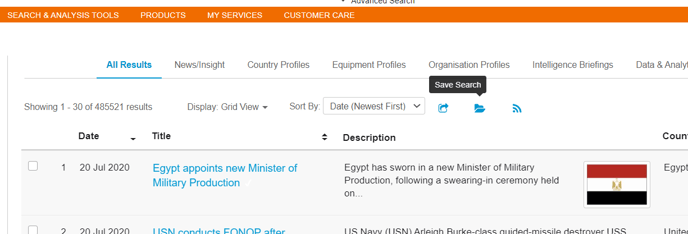
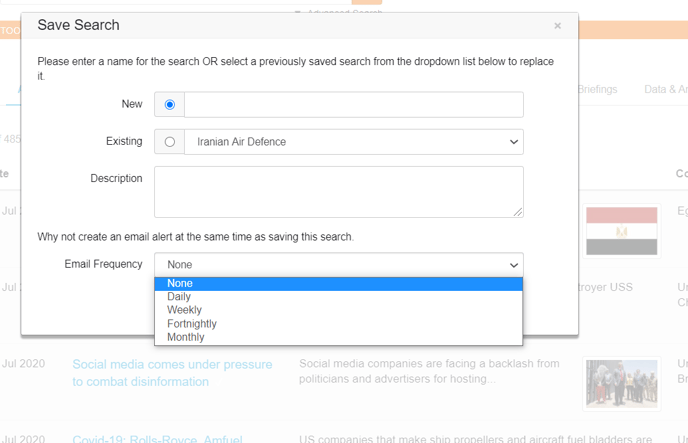
To set up a saved search enter all your search criteria – this can be a combination of keywords, Boolean operators and filters. Once you have selected your search options, click the “Save Search” icon at the top of the search grid. Enter a search name and description.
If you wish you can also turn your saved search into an email alert by selecting an email frequency. When you have finished click “Ok”
Accessing your saved searches
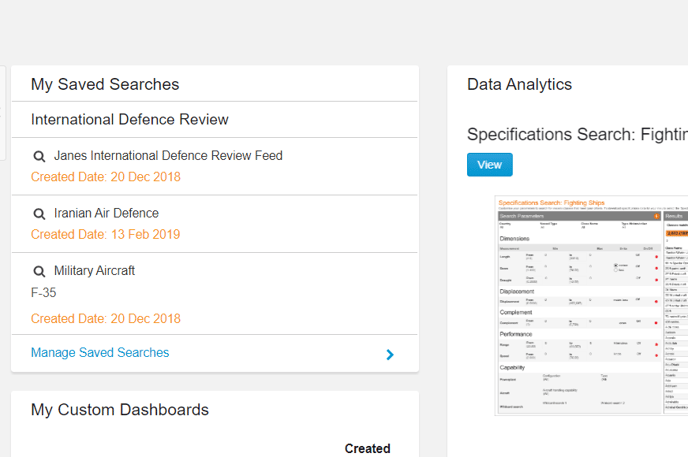
You can find your email alerts, RSS feeds and saved searches in the “My Saved Searches" widget on the home page or in the “My Services” tab on the top navigation.
Clicking on the saved search will run the search for you and take you to the search results grid.
Amending your saved searches
To amend your saved searches and alerts, you can click “Manage Saved Searches” in the home page widget, or navigate to “My Services” in the top navigation and select “My Saved Searches”.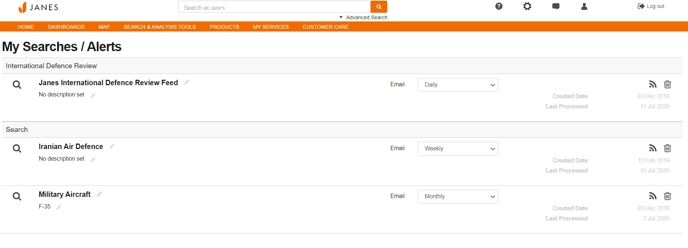
View the search results by clicking the magnifying glass icon.
Edit your alert name or description by clicking on the pencil icon.
You can also edit the frequency of your email alert by choosing from the drop down menu.