![janes.jpg]](https://i.janes.com/hs-fs/hubfs/janes.jpg?height=40&name=janes.jpg)
Explorer tool, part of the Data Analytics module, is an interactive tool, which supports equipment recognition, capability assessment and market analysis.
This section demonstrates:
- What Data Analytics Explorer is
- How to use the Explorer to explore known systems
- How to use the Explorer to identify unknown systems
- How to use the Explorer tool to compare entities
- How to use the Explorer to explore a military unit
What is Data Analytics Explorer?
Leveraging Janes unique structured military equipment database, you will be able to distinguish between equipment variants, display specifications, conduct side-by-side comparisons and link to associated weapons and subsystems. You can then continue to build out your analysis, for example you can link from weapons and systems related to your chosen platform to all other platforms that also carry that weapon or system and look to make capability comparisons.
The Explorer can also be used to explore military units displaying information including unit hierarchy, bases located and news linked to your chosen unit.
Specification tables also help you to identify the major characteristics of systems, while embedded links enable quick and easy access to system profiles for in-depth analysis, data and imagery.

Accessing the Explorer
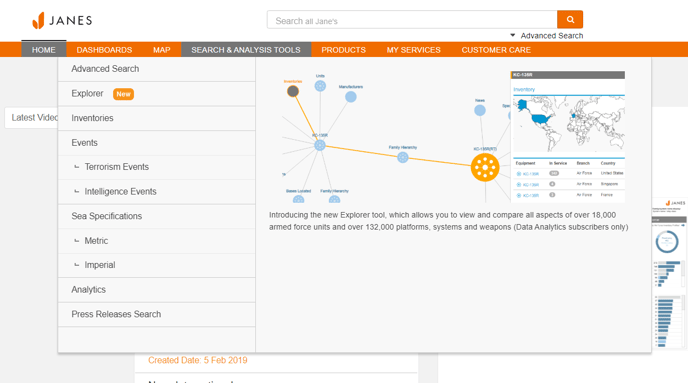
The Explorer tool can be accessed by adding the Explorer widget to the Janes Defence Equipment and Technology homepage or by selecting "Explorer" from the "Search & Analysis Tools" tab on the top navigation bar.
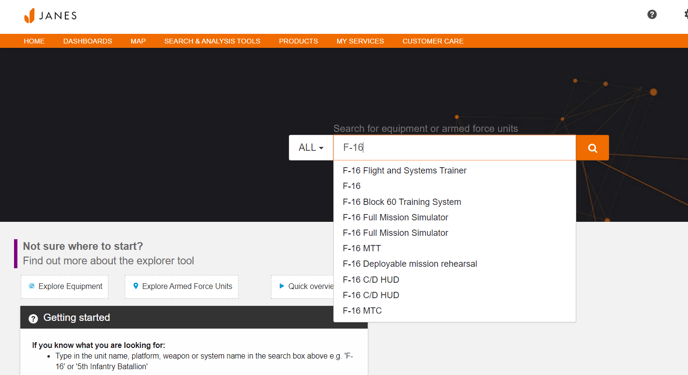
Using the Explorer tool to explore a known system
Enter a search term into the search box, in this example F-16.
Use the filters in the left-hand panel to refine your query, either by using the check boxes and clicking “Apply Filters” or simply clicking on the blue filter link.
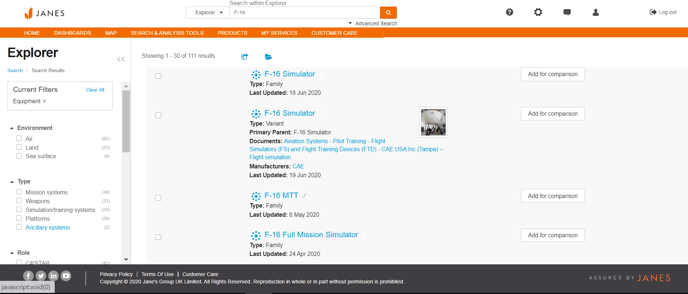
From the results list, click on the entity you want to explore.
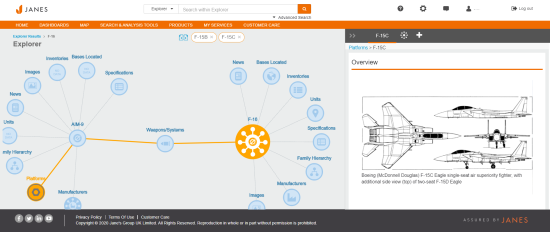
You can now explore multiple content sets related to your chosen entity, in this example the F-16.
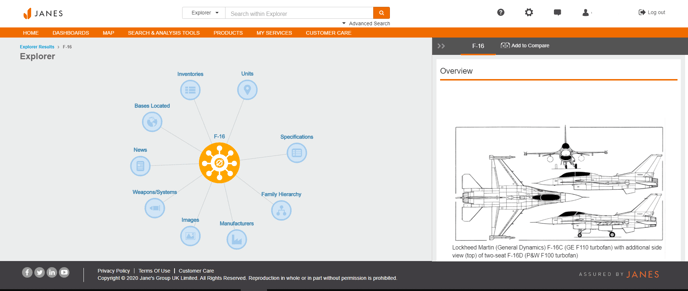
Click on the nodes to access your chosen content, the information in the right-hand panel will also change allowing you drill down further.
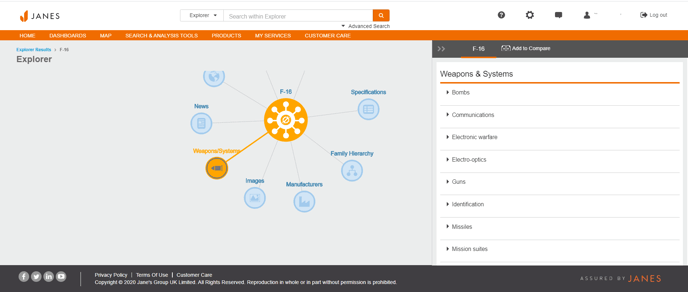
When you click the blue links the right-hand panel will display information related to your chosen entity.
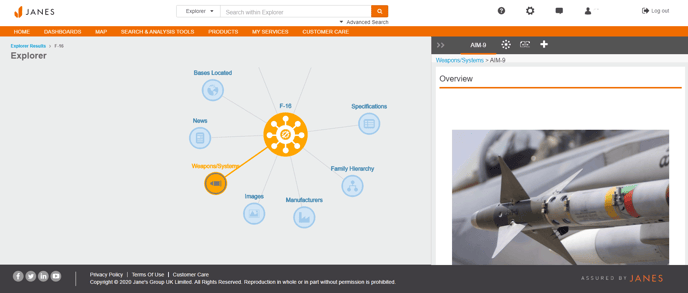
To add your selected entity to the explorer click + at the top of the right hand panel.
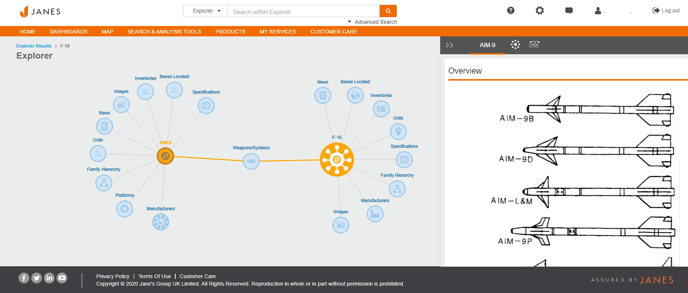
You can then click on the newly added entity to view content sets related to it, for example you can quickly view the other air platforms that utilise the AIM-9.
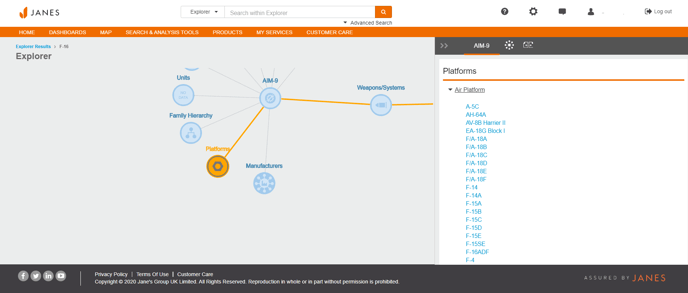
Accessing the Explorer via search
Explorer can also be accessed by selecting "Explorer" from the "Search & Analysis Tools" menu in the top navigation bar or directly from your search results.
If you are looking to identify an unknown entity, from the main Explorer screen leave the search box blank to perform a null search.
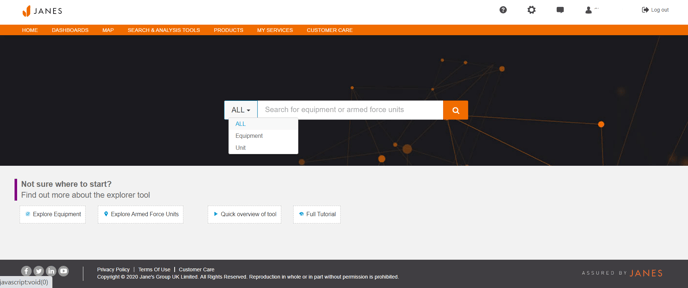
Using the filters identify unknown systems rapidly using structured equipment data.
Comparing Entities
From the explorer screen you can select entities for side by side comparison. Use the comparison icon in the top right panel selecting the icon to add to comparison. You can compare up to three entities.
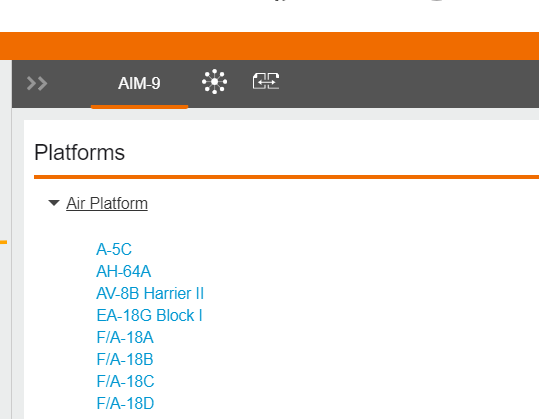
You can also add entities for comparison from the search results screen by clicking “Add for comparison”
Your selected entities will be shown under the top navigation bar. Simply click the icon to view your comparison.
Entities will be shown side by side, you can use the drop down menu to compare related content sets including inventories, specifications, family hierarchy and bases.
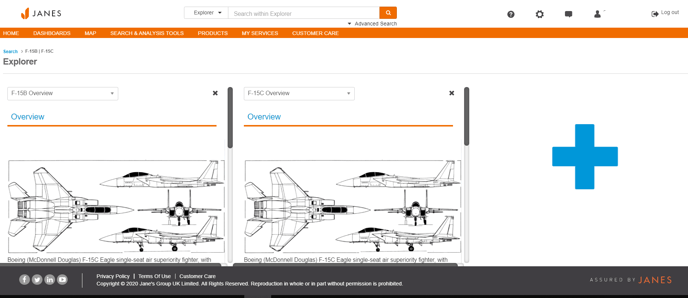
Click + to compare additional sets related to your chosen entities or use the search bar to search for and include additional entities.
Exploring a military unit
Using the search bar, use the drop down to select "Unit" and enter your chosen unit into the search box. If you are exploring an unknown military unit, select the "Explore Armed Force Units" button to bring up the filters menu.
When exploring an unknown unit, use the filters to narrow your results. Filter by country, service type or unit type.
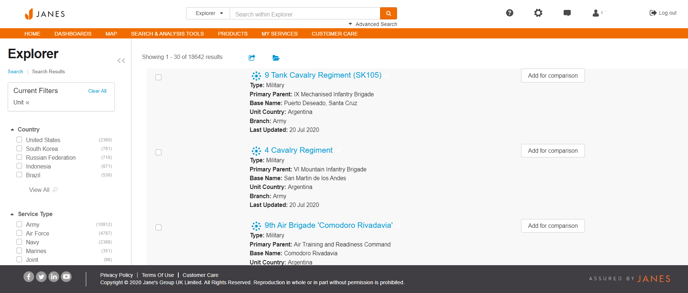
Once you have chosen your unit you can explore base locations, hierarchy and news related to your chosen unit.