![janes.jpg]](https://i.janes.com/hs-fs/hubfs/janes.jpg?height=40&name=janes.jpg)
Starting a customization: Add/Edit Customisations

My customisations
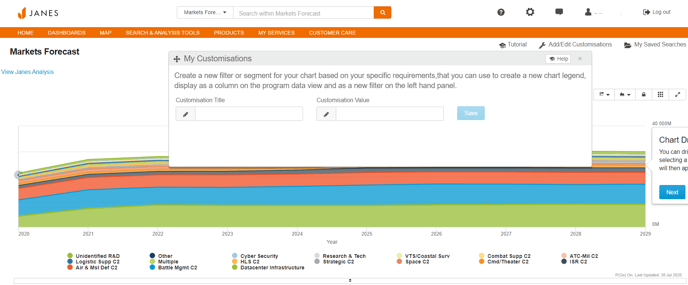
Clicking the Add/Edit Customisation button will open the My Customisations box
Note: You do not need to filter your forecast at this point - you will assign programmes to values in your customisation later.
The Customisation Title is the name of your customisation e.g. Size
Customisation Value will be the first division of programmes in your customisation (e.g. for the Size customisation, the first value might be "Small")
Adding and Editing Views in a Customisation
The value tabs will allow you to edit Values in your customisation. In this example, the Customisation was for Size and the first value would be Small. After you finish your customisation you can see it in the filters or under the My Customisations area of the Market Segment pull-down over the charting interface.
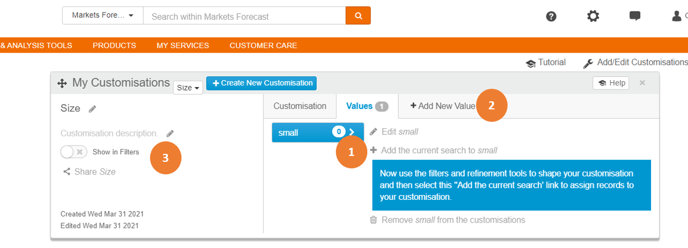
- Filter the chart or programme data to pull up programme records that you want to assign to your first value (i.e. small). You will then click the "+ Add the current search to (name of value)". All of these programme records will then be assigned to the customisation value and the number of records assigned will then be shown.
- You will then repeat this process, filtering your chart or data for records you want to assign, for each of the other Values that you would like to include in your customisation. Click the "+ Add New Value" tab to begin this process for other Values.
- Use the filters and refinement tools to shape your customisation.
Editing Values across an Entire Customisation
The customisation tab allows you to assign and edit records for all Values across your entire customisation.
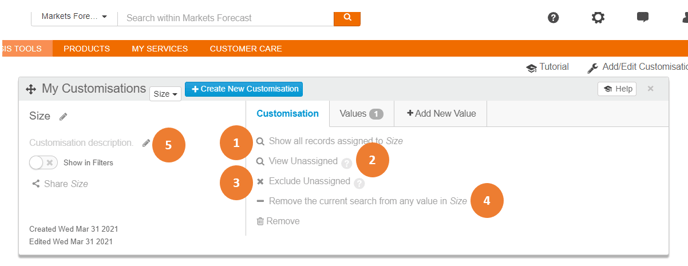
- "Show all records assigned to Size" allows you to see all currently assigned programme records in your customisation. If you just started your customisation, the only records will be the ones you filtered your chart by.
- "View Unassigned" will show you all records that are not part of your customisation in any Customisation Value. Any new records from monthly updates will appear here as well. The goal of your customisation is to assign all unassigned programme records.
- "Exclude Unassigned" will exclude any programme records that haven't been assigned to a Customisation Value.
- "Remove the current search from any value in Size" will remove all filtered programme records from any of the Values you have created in the current Customisation.
- The name of your customisation, description, option to show customisation as a filter, and option to share the customisation are here.